When doing UV printing, many users face a common problem: the colors in the design file look great on the computer, but the printed result looks different. Sometimes the colors become lighter, sometimes they shift, or the final product may not match the original design as expected. For industries such as packaging, advertising, and customized products, color quality directly affects the overall appearance. If a brand logo has the wrong color or an image does not look as expected, it can affect customer satisfaction and increase rework costs.In fact, inaccurate UV printing colors do not always mean there is a problem with the printer. The cause may come from the design file, ink condition, printing settings, or even the material surface. Finding the real reason and making the right adjustments can greatly improve the final printing results.
Check the Design File First, as Many Color Issues Start Here
When printed colors do not look right, many people immediately think there is something wrong with the printer. However, the design file itself may be the reason behind the color difference. The colors shown on a computer screen are naturally different from colors produced by ink printing. Without proper preparation, the final printed result may not match the original design.
Before printing, pay attention to these details:
- Confirm whether the image format and color mode are suitable for printing
- Check image resolution to avoid quality loss
- Test colors in advance to make the design closer to the actual printed result
For example, a bright blue color on a computer screen may appear slightly darker after printing. This happens because screens display colors through light, while UV printing creates colors through ink layers. Understanding this difference can help reduce unnecessary adjustments.
UV Ink Condition Can Affect Color Performance
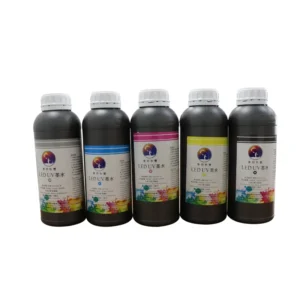
UV ink directly determines the final color quality. If the ink has problems, even a properly functioning printer may produce unstable colors. This is especially common when equipment has been used for a long time or different types of ink have been mixed during production.
Common situations include:
- Ink has been stored for too long, causing color performance changes
- Different inks are mixed, leading to inaccurate color matching
- Unstable ink supply causes certain colors to appear lighter or darker
During UV printing operations, it is recommended to use suitable ink for the printer and store it properly. If a certain color suddenly becomes lighter or loses detail, checking the ink supply system first is often better than assuming the printer has a problem.
Adjust Printing Parameters to Improve Color Accuracy
Even with the same UV printer, different settings can produce different color results. Some businesses choose faster printing modes to improve production speed, but this may reduce color saturation and fine details.
When adjusting printing settings, consider:
- Choosing the right printing mode based on product requirements
- Adjusting ink volume to make colors richer
- Controlling printing speed to improve graphic details
- Setting different parameters for different materials
For example, when printing on black or dark materials, proper use of white ink is important. Without suitable white ink settings, colors may appear darker and fail to achieve the expected design effect. When color problems occur, checking printing parameters is a good place to start.
Material and Printer Condition Also Affect Final Colors
When solving color difference problems, many users only focus on the printer and ink but overlook the product material itself. Different materials absorb and hold UV ink differently, so the same design may produce different results on different surfaces.
During production, pay attention to:
- Cleaning the material surface before printing to prevent dust from affecting results
- Treating smooth materials properly to improve ink adhesion
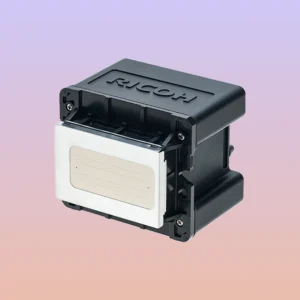
- Checking printhead condition regularly to avoid color issues caused by missing ink
- Testing samples before mass production to confirm stable color performance
For example, glass and metal surfaces are relatively smooth. Without proper surface preparation, the ink may not adhere well, making the printed colors look less vibrant. Conducting sample tests in advance can prevent problems during large-scale production.
Inaccurate UV printing colors do not always mean equipment failure. In many cases, the issue comes from multiple factors, including design files, UV ink, printing settings, and material preparation. By carefully checking each step and making proper adjustments, businesses can reduce color difference problems, improve product quality, and increase production efficiency. SpringYprinter provides professional UV printing solutions to help businesses achieve more stable and accurate color printing results.